8.1 Behind-the-Scenes Services
The Main Loop
Once startup finishes, SynapseOS settles into one continuous cycle that runs for as long as the computer stays on: check for new keyboard/mouse input, check for new network activity, redraw the screen, and repeat — dozens of times per second, fast enough that it feels completely instant to you.
Drawing the Screen
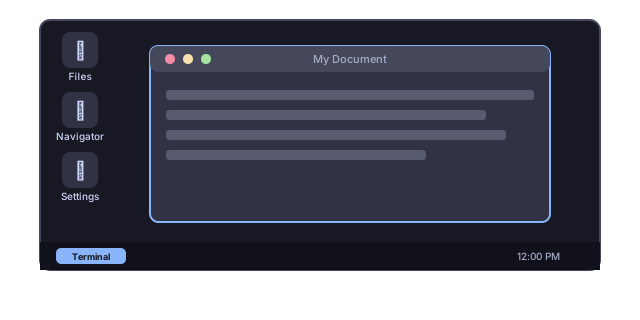
The desktop is drawn in layers, back to front, every single frame:
- The background
- Desktop icons
- Open windows, stacked in the order you last clicked them
- The dock
- The menu bar
Everything is drawn to an invisible "backstage" copy first, then swapped onto the visible screen all at once — the same trick real monitors and game consoles use to avoid any visible flicker or tearing while things are moving.
Windows
Windows look and behave the way you'd expect from a modern desktop: colored buttons in the top-left corner to close, minimize, and maximize, and up to 16 windows can be open at once.
Sound
- Plays a short jingle once startup finishes
- Can play music files (WAV and MP3) stored on your files
User Accounts
Up to 8 accounts can exist at once, including the always-present "root" account described in Chapter 7.
8.2 The Basic Toolkit
Every operating system needs a handful of small, repeatedly-used building blocks — comparing two pieces of text, copying data from one place to another, formatting a number as readable text. SynapseOS includes its own small, self-contained version of these basics, rather than borrowing them from anywhere else, keeping the whole system self-sufficient.
8.3 The Command Line
For people who prefer typing commands over clicking, SynapseOS includes a classic-style terminal window — a throwback to the text-based screens computers used before graphical interfaces became common, still beloved today by many programmers and power users.
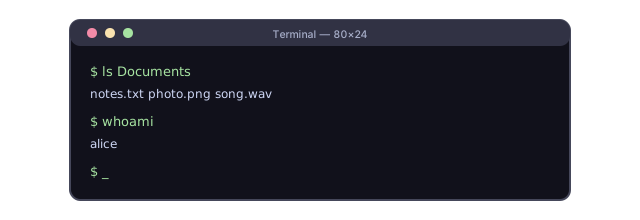
| Detail | Value |
|---|---|
| Screen size | 80 columns × 24 rows of text |
| Color scheme | A soft, modern dark palette (matching the rest of the desktop) |
| Command history | Remembers your last 16 commands, so you can recall them easily |
8.4 Handy Commands
Type any of these into the terminal window:
| Command | What It Does |
|---|---|
ls | Lists what's in the current folder |
cd | Moves into a different folder |
pwd | Shows which folder you're currently in |
cat | Prints the contents of a file to the screen |
echo | Prints text back to the screen |
mkdir | Creates a new folder |
touch | Creates a new, empty file |
rm | Deletes a file |
ping | Checks whether another device on the network responds |
ifconfig | Shows your current network settings and activity |
arp | Shows which other devices the system has recently talked to |
ps | Lists everything currently running |
mem | Shows how much memory is being used |
whoami | Shows which account you're currently logged in as |
users | Lists all accounts on the system |
su | Switches to a different account (asks for that account's password) |
play | Plays a music file |
clear | Clears the screen |
help | Lists every available command |
8.5 Settings & First-Time Setup
Where Settings Live
Your preferences — username, computer name, timezone, theme, and keyboard layout — are saved in a small settings file that SynapseOS reads every time it starts up.
| Setting | Example |
|---|---|
| Username | alice |
| Computer name | synapse |
| Timezone | America/New_York |
| Visual theme | dark or light |
| Keyboard layout | US, UK, German, French |
The First-Time Setup Wizard
A friendly, 7-step wizard walks you through everything the very first time you start SynapseOS:
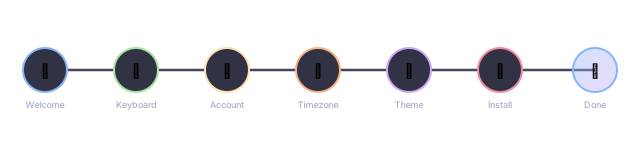
| Step | What Happens |
|---|---|
| Welcome | An animated logo and a choice of language |
| Keyboard | Pick your keyboard layout |
| Account | Choose a username and a name for your computer |
| Timezone | Scroll through and pick your timezone |
| Theme | Choose light or dark, with a live preview |
| Install | Optionally install SynapseOS permanently onto a disk |
| Done | A summary screen with a "Start SynapseOS" button |
The Web Browser
SynapseOS includes its own multi-tab web browser, built entirely for this project. It can open multiple tabs, type in a web address, load pages, and browse securely — see Getting Online → Encrypted Connections for how secure browsing works.