4.1 Where It All Begins
See Chapter 3 → Getting Ready, Step by Step for the full startup checklist. There's a single piece of code responsible for deciding what happens first — it doesn't do any of the actual work itself, but it makes sure every other part of the system comes online in the right order, like a stage manager calling cues during a live show.
4.2 Keeping Track of What's Running
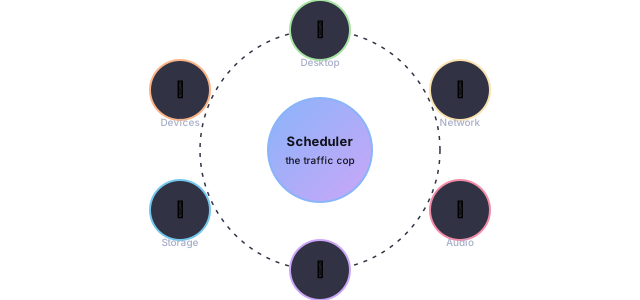
The Task List
SynapseOS keeps a fixed-size list with room for 32 "tasks" — the jobs the system needs to juggle at once, like drawing the screen or listening for keyboard input. The very first slot is permanently reserved for the original startup task; everything else is created afterward as needed.
Creating a New Task
When SynapseOS needs to start a new job, it goes through a short checklist:
- Finds an empty slot in the task list.
- Sets aside a small, private chunk of memory for that job to use as scratch space.
- Prepares everything so the job will start running from the correct starting point.
- Marks the task as "ready to run" and gives it a priority level.
What's Saved for Each Task
Whenever the system switches from one task to another, it needs to remember exactly where that task left off — every register value, like a bookmark that captures the exact page and line someone was reading — so it can pick back up seamlessly later.
4.3 The Traffic Cop
SynapseOS uses a simple, fair scheduling approach often called round-robin: every task gets a short turn, then control moves on to the next one waiting, then the next, cycling back around — much like a classroom teacher giving each student a turn to speak before going back to the first student again.
How a Turn Ends
A tiny hardware clock ticks many times per second. On every tick, the scheduler:
- Reduces the current task's remaining "turn time" by one notch.
- If there's still time left, the same task simply continues.
- If the turn is up, the system saves that task's bookmark and switches to the next task waiting in line.
Priority
Not every task gets an equally long turn. Important, time-sensitive tasks can be given a higher priority, meaning they get a longer slice of time before the system moves on — similar to letting an urgent phone call take priority over casual chit-chat.
4.4 Managing Memory
See Chapter 2 → Where Everything Is Stored for how the 192 MB memory "shelf" works. In short: whenever a program needs some working memory, it asks for a chunk, uses it, and gives it back when it's done — and the system automatically tidies up any neighboring free space so it doesn't end up fragmented into tiny, unusable pieces.
4.5 Handling Interruptions
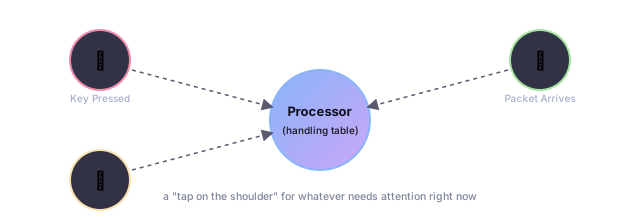
Hardware devices need a way to "tap the system on the shoulder" when something happens — a key is pressed, a timer ticks, a network packet arrives. These taps are called interrupts, and SynapseOS keeps a lookup table of exactly what to do for each kind of tap.
Two Broad Categories
| Category | Examples |
|---|---|
| Problems the processor itself detects | Things like invalid instructions or memory errors |
| Hardware devices asking for attention | Keyboard presses, the system timer, network activity |
The System Clock
SynapseOS measures time using the processor's own built-in cycle counter rather than relying purely on an external clock chip — it's calibrated once early in startup and then stays accurate without needing constant hardware attention, similar to setting a stopwatch once and trusting it from then on.
4.6 Staying Coordinated
Because several tasks can be part-way through their work at the same time, SynapseOS needs a way to make sure two tasks never step on each other's toes — for example, both trying to change the same piece of data at once. Right now, it handles this the simple way: for a brief moment, it pauses the task-switching entirely, makes its change, then resumes — like briefly putting up a "one moment please" sign rather than juggling a complex reservation system.
4.7 Programs Talking to the System
In many operating systems, ordinary programs aren't allowed to touch hardware directly — they have to politely ask the control center to do it on their behalf, through a formal "request window" called a system call. SynapseOS doesn't have that formal window yet: since everything currently runs together in the same trusted space (see Chapter 2 → One Room, No Walls), any part of the system can call any other part directly, the same way colleagues in one office can just talk to each other instead of filing a request form.
4.8 Managing Hardware Devices
Finding What's Plugged In
Modern computers have a standard way for the system to ask "what hardware is connected to you?" — SynapseOS walks through every possible slot on that hardware bus at startup and takes note of anything it finds, the way you might walk down every aisle of a hardware store to see what's in stock.
The Disk Drive
SynapseOS talks to a classic style of hard disk connection, reading and writing data one chunk at a time, waiting patiently for the disk to confirm each request before moving to the next — steady and simple, if not the fastest possible approach.
Keyboards and Other USB Devices
Both older-style (PS/2) and modern USB keyboards are supported, covering essentially any keyboard someone might plug in. Incoming key presses are placed into a short waiting line and picked up by the desktop a little at a time, the way a barista calls out drink orders as they're ready.
Sound Card
If a compatible sound chip is found, SynapseOS can play back music files and a short startup jingle right after the system finishes waking everything up.