10.1 Basic Settings
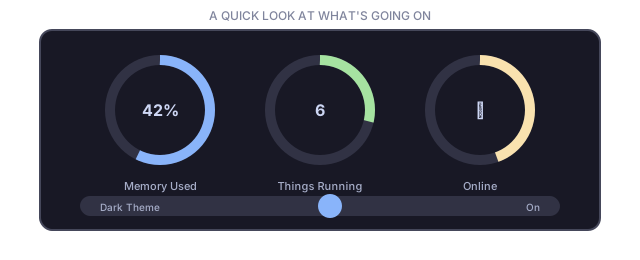
Your preferences are saved to one small settings file, created automatically the first time you complete the welcome wizard. SynapseOS reads it again every time it starts up.
| Setting | Example | What It Controls |
|---|---|---|
| Username | any name | Your default login name |
| Computer name | any name | How the computer identifies itself |
| Timezone | America/New_York, etc. | What time the clock displays |
| Theme | dark or light | The desktop's color scheme |
| Keyboard layout | US, UK, German, French | Which characters your keys produce |
You can view or change these settings directly from the terminal window if you prefer typing commands over re-running the wizard.
10.2 Managing Accounts
Adding an Account
From the terminal, you can create a new account by typing users add followed by
a username, password, home folder, and default shell.
Listing Accounts
Typing users shows every account on the system, similar to:
UID  GID  Username  Home
---  ---  --------  ----
0    0    root      /root
1001 1001 alice     /home/alice
Removing an Account
Typing users del followed by a username removes that account. The built-in
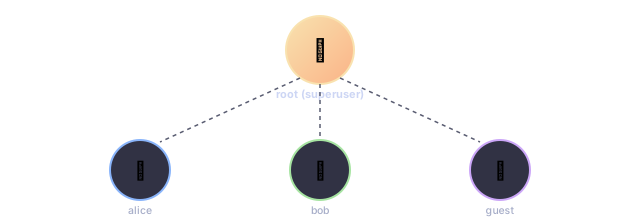
"root" account can never be removed — it's the one permanent administrator account.
Switching Accounts
Typing su followed by a username asks for that account's password, then switches
the active session over to it once the password is correct.
Home Folders
| Folder | What's Inside |
|---|---|
| Documents | Your saved documents |
| Pictures | Your images |
| Music | Music and audio files |
| Downloads | Files downloaded through the web browser |
10.3 What's Running
Unlike some operating systems, SynapseOS doesn't have a separate "services" control panel — the small set of background jobs it depends on are simply switched on in order every time it starts up.
| What's Running | Always On? | What It Does |
|---|---|---|
| Diagnostic log | Yes | Records what's happening for troubleshooting |
| Desktop compositor | Yes | Draws everything you see on screen |
| Keyboard input | Yes | Both USB and older-style keyboards |
| Networking | If a supported network card is found | Basic internet connectivity |
| Audio | If a supported sound card is found | Startup jingle and music playback |
| Disk filing system | At startup | Loads your files into memory |
| Task scheduler | Yes | Keeps every part of the system running smoothly together |
10.4 Keeping Records
Every step SynapseOS takes while starting up and running is written to a diagnostic log — a running commentary that's mostly meant for troubleshooting rather than everyday viewing. It looks something like this:
=== SynapseOS ===
Kernel entry point reached!
Serial initialized.
Interrupts initialized.
Startup checks passed.
Desktop ready.
Sound ready.
You can also check on network activity at any time from the terminal, using the
ifconfig and arp commands described in
What You See and Use → Handy Commands.
10.5 Checking Up on Things
What's Currently Running
Typing ps shows every active task, similar to:
PID  State    Priority  Name
---  -------  --------  ----
0    RUNNING  1         kernel
1    READY    1         gui_loop
Memory Usage
Typing mem shows a quick summary, such as:
Heap used: 42 MB / 192 MBNetwork Activity
Typing ifconfig shows your network address and recent activity:
MAC: 52:54:00:12:34:56
IP:  10.0.2.15 / 255.255.255.0
GW:  10.0.2.2

RX packets:          142
TX packets:           87
10.6 Common Problems & Fixes
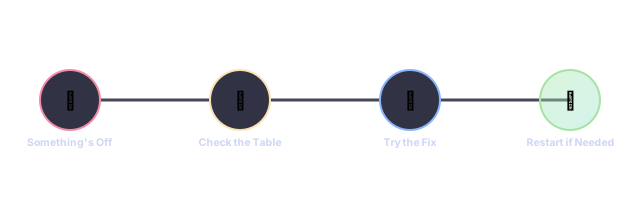
| What You're Seeing | What to Try |
|---|---|
| Black screen right after startup | Make sure Secure Boot is turned off in your computer's startup settings, and try the older BIOS boot option if available |
| Keyboard doesn't respond | Known limitation of this early version — see Building It Yourself → Finding and Fixing Problems |
| No internet connection | Confirm a compatible network card is connected and recognized during startup |
| No sound | Confirm a compatible sound card is present; SynapseOS needs specific, common sound hardware to work |
| Installing to disk fails | Make sure a disk is actually connected and has enough free space |
| The system freezes or restarts unexpectedly | Check the diagnostic log for the last message before it happened, and try restarting |
10.7 Starting Fresh
If an Installed Copy Breaks
You can always start over by booting from the original USB drive or disc again — it works completely independently of whatever is (or isn't) installed on your hard disk. From there, you can reinstall using the setup wizard.
Resetting Your Settings
Deleting the settings file (from the terminal, typing rm /etc/synapseos.cfg)
brings back the welcome wizard the next time you start up, letting you set everything up
again from scratch. Note that user accounts themselves live only in memory and reset
automatically every time the power cycles.
If the System Completely Freezes
If SynapseOS ever becomes totally unresponsive, the only option is a hard restart. The diagnostic log will usually show the last thing that happened right before the freeze, which can help identify what went wrong.