5.1 How Storage Is Organized
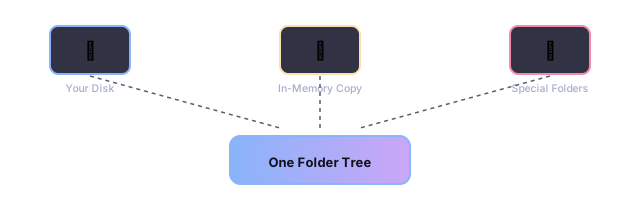
Think of SynapseOS's file system as a filing cabinet with two drawers. One drawer is a working copy kept entirely in memory — fast, always available, but empty when the power is off. The other represents your actual hard disk. At startup, SynapseOS reads everything from the disk drawer and copies it into the memory drawer, so that from then on, every program interacts with one single, consistent view of your files.
What this means in practice: changes you make while using SynapseOS are instantly reflected on screen because they live in fast memory. Whether those changes are saved back to the actual disk depends on whether the built-in installer has been used (see 5.6 What Happens to Your Changes).
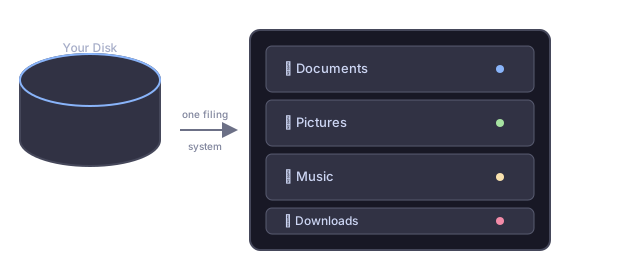
5.2 One Filing System for Everything
No matter where a file actually comes from, SynapseOS presents it through one unified system of folders and files — the same familiar tree structure you'd see in any modern operating system, starting from a single "root" folder.
Some Practical Limits
| What | Limit | What It Means for You |
|---|---|---|
| Total files and folders | 256 | Plenty for a demo system, but not meant for a huge personal archive |
| Files open at once | 32 | More than enough for everyday use — most people rarely have more than a handful of files open |
| Longest file/folder name | ~128 characters | Room for descriptive names without being unlimited |
| Longest full file path | ~256 characters | Covers deeply nested folders comfortably |
5.3 Reading Your Disk
SynapseOS reads disks formatted with FAT32 — one of the most widely compatible and long-lived disk formats around, still used today for USB flash drives and SD cards precisely because nearly every device on Earth can read it.
What Works Well
| Feature | Status |
|---|---|
| Short, classic-style filenames | Supported |
| Long, modern filenames (up to 255 characters) | Supported |
| Saving changes back to the physical disk | Not yet supported — read-only for now |
| Very large files (over 6 MB) | Trimmed down to fit the current design |
| Deeply nested folders (more than 8 levels) | Limited to keep things simple and safe |
Formatting a Fresh Disk
The built-in installer (see Everyday Use → Starting Fresh) can also prepare a brand-new, empty disk in the FAT32 format, ready for SynapseOS to install onto.
5.4 Who Can Do What With a File
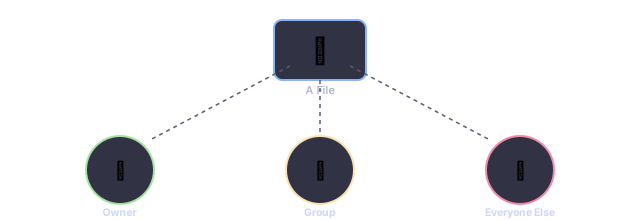
SynapseOS uses the same classic permission model found in Linux and macOS: every file and folder remembers who owns it, and what the owner, other members of their group, and everyone else are each allowed to do with it — read it, change it, or run it as a program.
Default behavior: new files can be read by everyone but changed only by their owner. New folders work the same way, plus everyone can look inside them.
There is always one special account, called root, which is allowed to do anything to any file, regardless of who owns it — similar to a building superintendent who holds a master key to every apartment.
5.5 Bringing a Disk Online
As soon as SynapseOS starts up, it automatically reads the entire contents of the disk and weaves it into the one big filing system described above — there's no separate step where you have to manually "connect" a drive first.
| Folder | What Lives There (once installed) |
|---|---|
/boot | The core system files needed to start up |
/etc | Your saved settings from the first-time setup wizard |
/home/<you> | Your personal folder — documents, pictures, downloads |
5.6 What Happens to Your Changes
All of your files live in fast memory while SynapseOS is running, which is why everything feels instant. But memory is wiped clean every time the computer restarts — so unless SynapseOS has actually been installed onto a real disk, any file you create or edit only exists for as long as the power stays on.
5.7 When Something Goes Wrong
If SynapseOS can't find a disk, or the disk doesn't look like a format it understands, it simply carries on using its in-memory filing system with nothing loaded from disk — nothing crashes, you just won't see any of your previously saved files. From there, you can always run the first-time setup wizard again to reinstall.